General Settings #
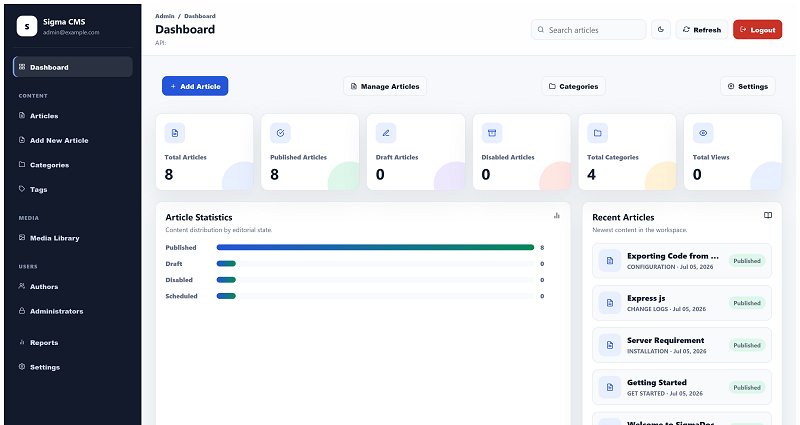
Navigate to #
https://yourdomain.com/admin/login → Admin → SettingsThe Settings page is divided into multiple sections, each designed to manage a specific part of your documentation website.
Website Settings #
Website Settings allow you to customize the branding of your SigmaDocs installation.
Website Name #
Enter the name of your documentation website.
SigmaDocs DocumentationThis name appears in:
• Browser title
• Navigation bar
• Search engines
• Emails
• Footer
Website Logo #
Upload your company or product logo.
Recommended formats:

• PNG
• SVG
• WEBP

Recommended size: 250 × 60 px
The logo is displayed throughout the documentation website and admin dashboard.
Favicon #
Upload the website favicon.
Recommended size: 96 × 96 pxThe favicon appears in:
• Browser tabs
• Bookmarks
• Search engine results
• Mobile home screens
Footer Copyright #
Customize the footer text.
© 2026 SigmaTheme. All Rights Reserved.Google Authentication Settings #
SigmaDocs supports secure authentication using Google OAuth, allowing users to sign in using their Google account.
Enable Google Login #
Turn Google Authentication on or off. When enabled, visitors can choose Continue with Google during login.
Google Client ID #
Paste the OAuth Client ID generated from Google Cloud Console.
xxxxxxxxxxxxxxxx.apps.googleusercontent.comGoogle Client Secret #
Paste your Google Client Secret. Keep this value private and never expose it in frontend code or public repositories.
Authorized Redirect URL #
Configure the redirect URI inside your Google Cloud Console.
https://yourdomain.com/api/auth/google/callbackAfter saving the settings, users can authenticate securely using their Google account.
SMTP Email Settings #
SMTP allows SigmaDocs to send transactional emails.
Examples include:

• Password Reset
• Welcome Email
• Account Verification
• Email Notifications
SMTP Host #
smtp.gmail.comSMTP Port #
Common SMTP port values are:
465
587
SMTP Username #
The SMTP username is usually your email address.
support@yourdomain.comSMTP Password #
Enter your email account password or App Password. For Gmail, Google recommends using an App Password instead of your normal account password.
Encryption #
Choose one of the following options:
• SSL
• TLS
Sender Name #
SigmaDocsSender Email #
support@yourdomain.comAll outgoing emails will use this sender information.
Test Email #
After configuring SMTP, send a test email to verify that the server is correctly configured. If the email is delivered successfully, your SMTP configuration is complete.
SEO Settings #
SigmaDocs includes built-in SEO settings to improve your documentation's visibility on Google and other search engines.
Default SEO Title #
Specify the default page title.
SigmaDocs Documentation TemplateMeta Description #
Provide a concise description of your documentation website.
SigmaDocs is a modern Next.js and Express.js documentation CMS with a powerful admin dashboard, advanced search, Google Login, and SEO optimization.Recommended length: 150–160 characters.
Meta Keywords #
Enter keywords separated by commas.
SigmaDocs, Documentation CMS, Next.js Documentation, Express.js CMS, Knowledge BaseCanonical URL #
Specify your preferred website URL.
https://yourdomain.comThis helps search engines avoid duplicate content issues.
Robots Meta #
Choose how search engines should index your website.
• Index, Follow
• No Index
• No Follow
Open Graph Image #
Upload the image used when your documentation is shared on social and messaging platforms.
• Facebook
• LinkedIn
• Discord
• Slack
• WhatsApp

Recommended size: 1200 × 630 px
Twitter Card Image #
Upload a dedicated preview image for Twitter/X sharing.
Google Analytics #
Track visitor activity using Google Analytics. Paste your Measurement ID into the provided field.
G-XXXXXXXXXXOnce configured, SigmaDocs automatically loads the Google Analytics tracking script across your website.
Google Tag Manager #
Integrate Google Tag Manager without modifying source code.
GTM-XXXXXXXGoogle Tag Manager allows you to manage:
• Analytics
• Conversion Tracking
• Marketing Pixels
• Custom Events
• Third-party ScriptsAll of these can be managed from a single dashboard.
Google Maps API #
If your documentation or contact pages use interactive maps, enter your Google Maps API key.
AIzaSyXXXXXXXXXXXXXXXXXXXXXXXXXXXXSave Settings #
After configuring all required options, click Save Settings.
SigmaDocs will immediately apply the updated configuration across your documentation website.
Some changes, such as the logo or favicon, may require refreshing your browser cache before they become visible.
Best Practices #
• Upload a high-quality logo with a transparent background.
• Use a properly sized favicon for all devices.
• Protect your Google Client Secret and SMTP credentials.
• Use an App Password for Gmail SMTP instead of your account password.
• Complete all SEO fields to improve search engine rankings.
• Enable Google Analytics to monitor website traffic.
• Configure Google Tag Manager for advanced tracking and marketing integrations.
• Regularly test SMTP to ensure emails are delivered successfully.
• Keep your API keys and credentials secure and never expose them publicly.
Tips #
• Configure General Settings immediately after installation.
• Verify Google Login before making the website public.
• Test password reset emails after configuring SMTP.
• Use descriptive SEO titles and meta descriptions for better indexing.
• Periodically review and update your branding, SEO information, and analytics configuration as your documentation website grows.
Next Step #
After completing the General Settings, you can begin building your documentation by creating Categories, publishing Articles, managing your Media Library, and configuring Authors to collaborate on your documentation website.